Docker Architecture Explained — From My Learning Notes
Originally published on MediumDocker Architecture Explained — From My Learning Notes
When I first started learning Docker, I could run commands like docker run , docker build, but something always felt missing.
I knew what to type, but I didn’t truly understand what was happening under the hood. That gap is exactly why I decided to sit down, study Docker architecture, and draw it myself.
In this blog, I’ll explain Docker architecture the way I finally understood it — step by step, using the diagram I created while learning. The goal is simple: if you can visualise how Docker works internally, everything else (Dockerfiles, networking, Kubernetes) becomes much easier.
The Big Picture
At a high level, Docker follows a client–server architecture. There are three major parts involved whenever you work with Docker:
- Docker Client — where commands / Instructions are given by the user
- Docker Host — where containers actually run in a virtual environment.
- Docker Registry — where images are stored ( Think of it’s like a storehouse of Docker images)
Before going further, let’s clarify two core concepts…
- Image: It’s like a list of the dependencies to be included in a container
- Container: It’s a running instance of an image, think of it like an isolated machine that is dedicated to running your application in an isolated environment by including all your dependencies mentioned in the image.
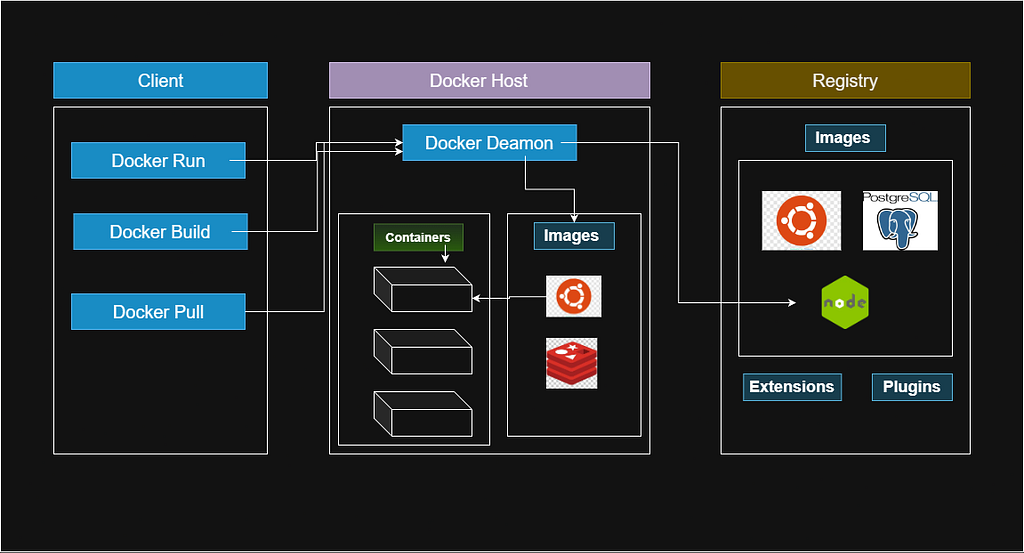
Every Docker command you run flows through these components in a predictable way.
1. Docker Client — Where Everything Starts
The Docker Client is what we interact with directly. Whenever we run commands like:
- docker run
- docker build
- docker pull
We are talking to the Docker Client, not directly to containers or images.(what containers and images
An important realisation for me was this:
The Docker Client does not do the heavy work. It only sends requests.
These requests are sent to the Docker Daemon using REST APIs (over UNIX socket or TCP). This separation is why Docker feels lightweight from a user’s perspective.
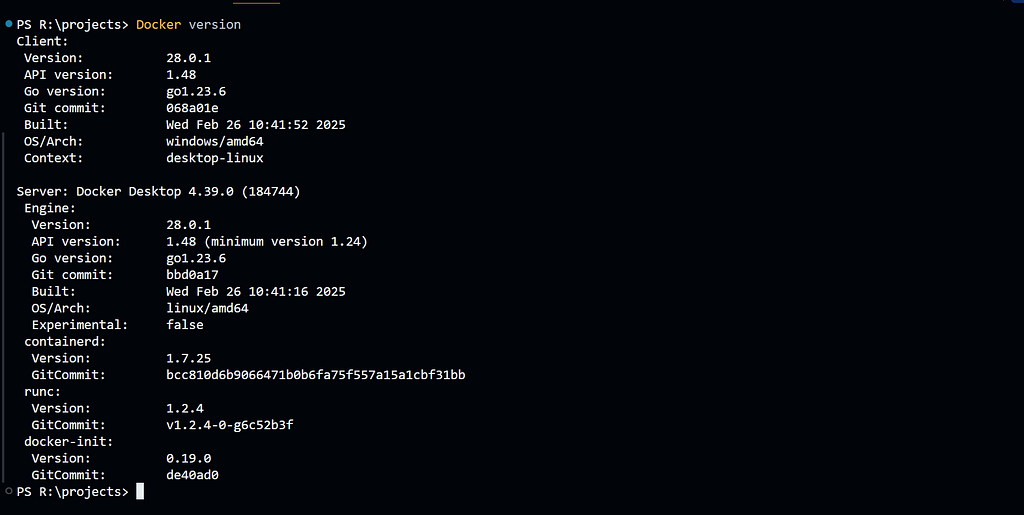
Figure 2: Output of the docker version command showing Docker Client and Docker Daemon details.
This confirms Docker’s client–server architecture, where the Docker CLI (client) communicates with the Docker Engine (server) running on the host system.
2. Docker Host — The Real Worker
The Docker Host is the system where Docker is installed and where everything actually happens. This is where the Docker Daemon (dockerd) runs.
Think of the Docker Daemon as the brain of Docker.
Responsibilities of Docker Daemon
- Building images
- Pulling images from registries
- Managing local images
- Creating and running containers
- Managing container lifecycle (start, stop, remove)
In my diagram, you’ll notice that all client commands eventually point to the Docker Daemon. That’s intentional — nothing happens without it.
Let’s see the info about my Docker application
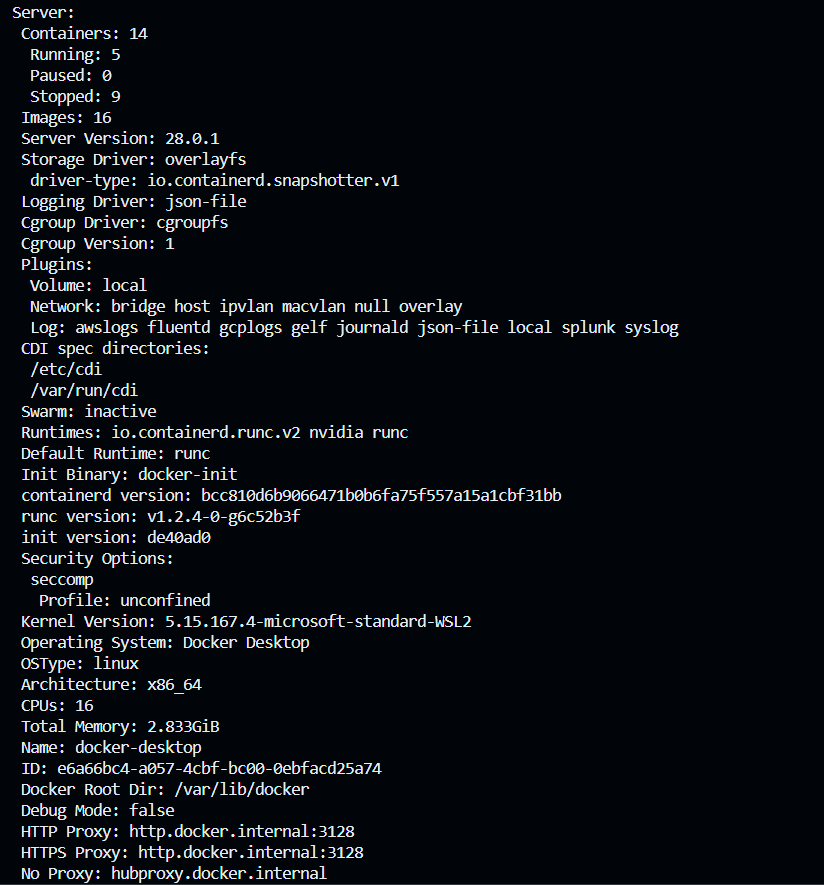
Figure 3: Selective output of the docker info command from my local system.
This snapshot shows the server-side configuration of the Docker Daemon, including the number of running and stopped containers, available images, storage driver, container runtime, kernel version, and allocated system resources such as CPU and memory.
It also highlights that the Docker daemon is running on a Linux-based environment (WSL2) with internal networking and proxy configuration, reinforcing Docker’s role as the central component responsible for managing containers on the host.
Images Inside the Docker Host
Inside the Docker Host, Docker maintains a local image store.
Images are:
- Read-only templates
- Built using Dockerfiles
- Versioned using tags
When we run docker buildThe daemon creates an image and stores it locally. When we rundocker pull, the daemon pulls the image from the registry and saves it here.
This local image cache is why repeated container runs feel fast.
Let’s see some of my local Docker images
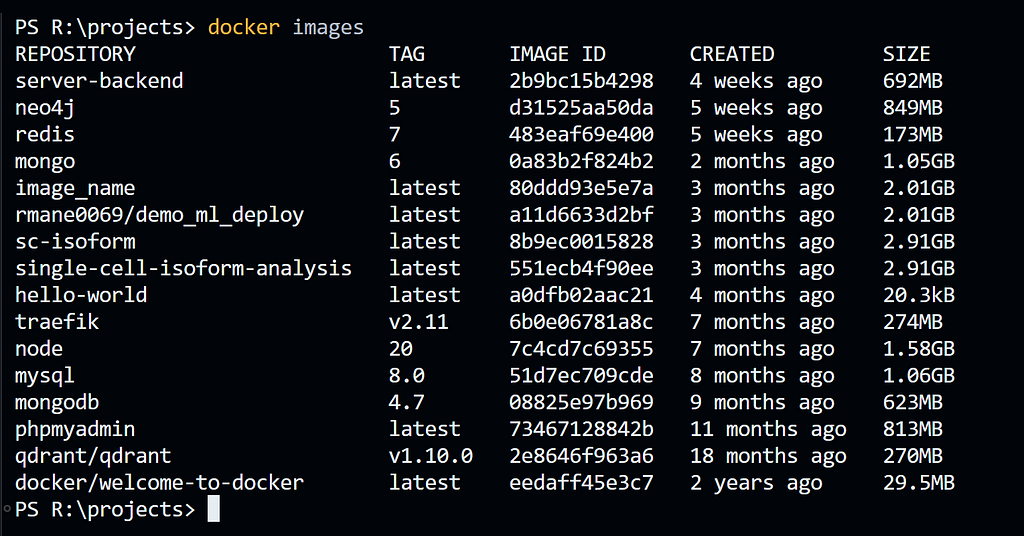
Figure 4: List of locally available Docker images on my system.
This output shows how Docker maintains a local cache of images, which are later used by the Docker daemon to spin up containers efficiently.
Containers — Running Instances of Images
Containers are running instances of images.
In my architecture diagram, containers are shown separately from images to make one thing very clear:
An image is static. A container is alive.
When we run docker run, the Docker Daemon:
- Checks if the image exists locally
- Pulls it from the registry if it doesn’t
- Creates a container from that image
- Starts the container
Multiple containers can be created from the same image, which is one of Docker’s biggest strengths.
3. Docker Registry — Image Storage Layer
The Docker Registry is where Docker images live.
Common examples include:
- Docker Hub
- Private company registries
- Cloud registries (ECR, GCR, ACR)
In the diagram, the registry is shown outside the Docker Host, and that distinction matters. The registry does not run containers — it only stores images.
Types of Images in a Registry
- Base images (Ubuntu, Alpine)
- Official images (Nginx, PostgreSQL, Node)
- Application images (custom-built by developers)
When we use docker pullThe flow is:
Docker Client → Docker Daemon → Registry → Docker Daemon
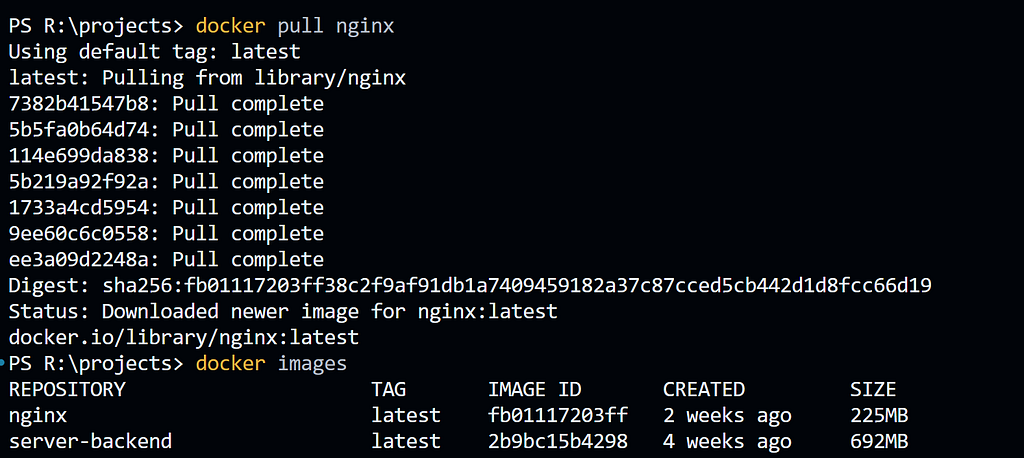
Now, as in Figure 3, I don’t have an nginx named Docker image locally. Now let’s try to pull it from the Docker registry and run that image.
Now you can see we have got the nginx image locally.
Now let's run it in a container:
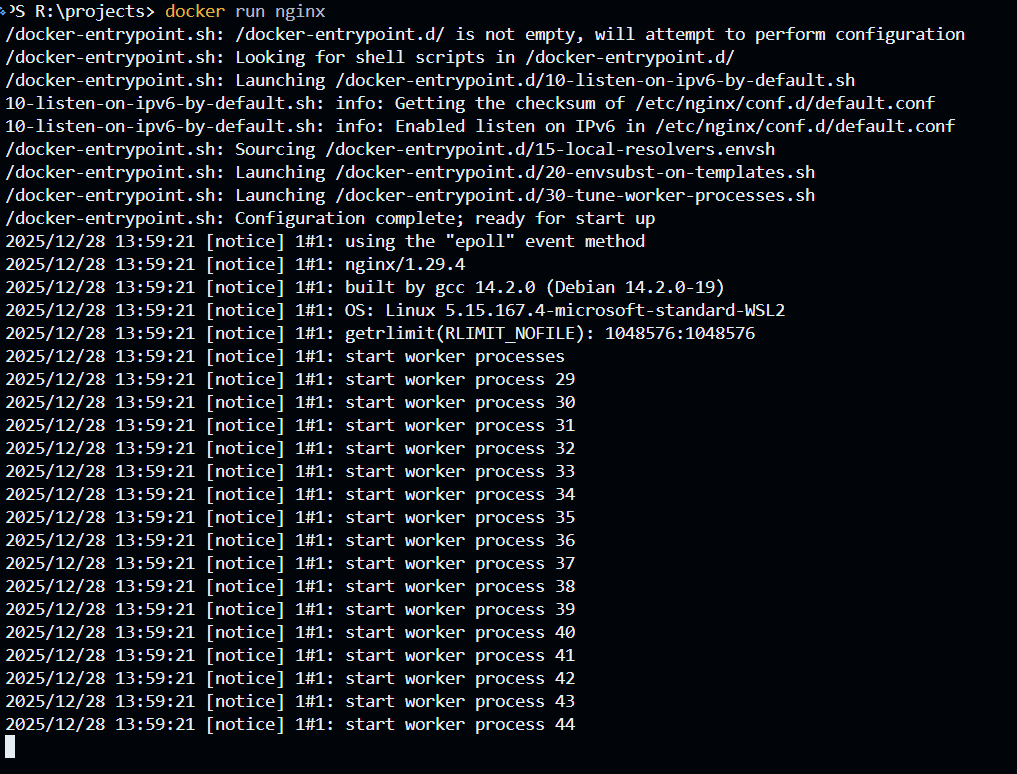
This command creates a new container from the nginx image and starts it. The output displayed on the terminal shows the Nginx startup logs, which confirms that the container is running successfully and the Nginx server has started inside the container.
This sequence clearly demonstrates the Docker workflow:
- Pull an image from the registry
- Store it locally on the Docker host
- Create and run a container from that image
Key Takeaway
Docker images act as blueprints, while containers are live, running instances created from those images.
If an image is not available locally, Docker automatically pulls it from the registry before starting the container.
Command Flow: How Everything Connects
This is where architecture really clicks.
docker build
- Client sends build request
- Daemon reads Dockerfile
- Image is created and stored locally
docker pull
- Client sends pull request
- Daemon downloads an image from the registry
- Image stored locally
docker run
- Client sends a run request
- Daemon checks the image
- Container is created and started
Every command follows this same client → daemon → execution pattern.
Why Understanding Docker Architecture Matters
Once I understood Docker architecture:
- Dockerfiles started making sense
- Debugging containers became easier
- Kubernetes concepts felt less intimidating
Instead of memorising commands, I could reason about why something was failing.
Final Thoughts
Docker may look simple from the outside, but internally it is cleanly designed and well structured. Understanding this architecture changed the way I approach containers — not as magic boxes, but as predictable systems.
This blog is my attempt to explain Docker the way I wish someone had explained it to me when I started.
In the next blog, I’ll go deeper into Docker Images vs Containers vs Volumes, because that’s where most beginners (including me) get confused.
If you’re learning Docker right now, my advice is simple: draw the architecture yourself once. It will stay with you longer than any command list ever will.